

Overview
SIBS Payment Gateway (SPG) webhooks must be configured in the SPG Backoffice to enable asynchronous notifications for transaction events.
This page provides a step-by-step guide to:
- Configure webhook endpoints
- Define scope and event types
- Retrieve and manage the webhook secret
- Test and validate webhook delivery
This configuration is required for the webhook processing model described in:
- E.1.4 Receiving and Processing Webhooks
- E.1.5 Security and Validation
- E.1.8 Webhooks vs Status API (Consistency Model)
Prerequisites
Before configuring webhooks, ensure that:
- A public HTTPS endpoint is available
- The endpoint supports TLS 1.2 or higher
- The endpoint is reachable from the internet
- The endpoint:
- Accepts HTTP POST requests
- Returns HTTP 200 OK quickly with the expected acknowledgement response body
- Supports encrypted payload processing

Step-by-Step Configuration
Step 1 – Access SIBS SPG Backoffice
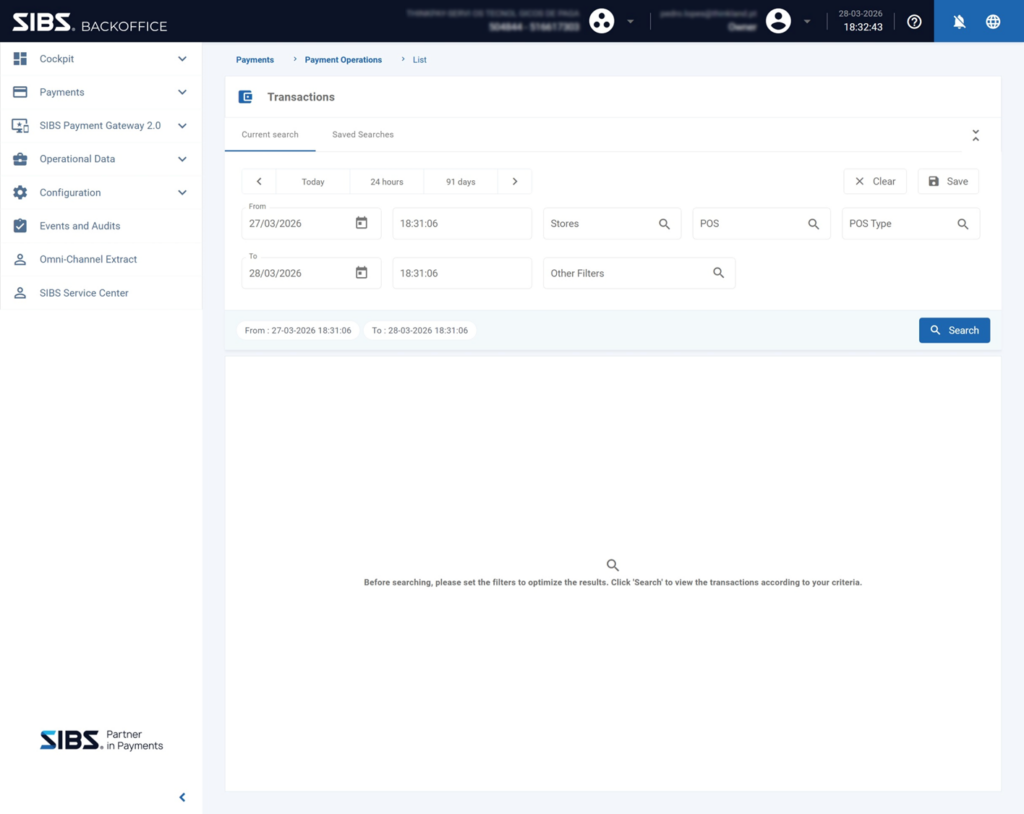
- Log in to the SIBS SPG Backoffice
Step 2 – Navigate to SPG Module
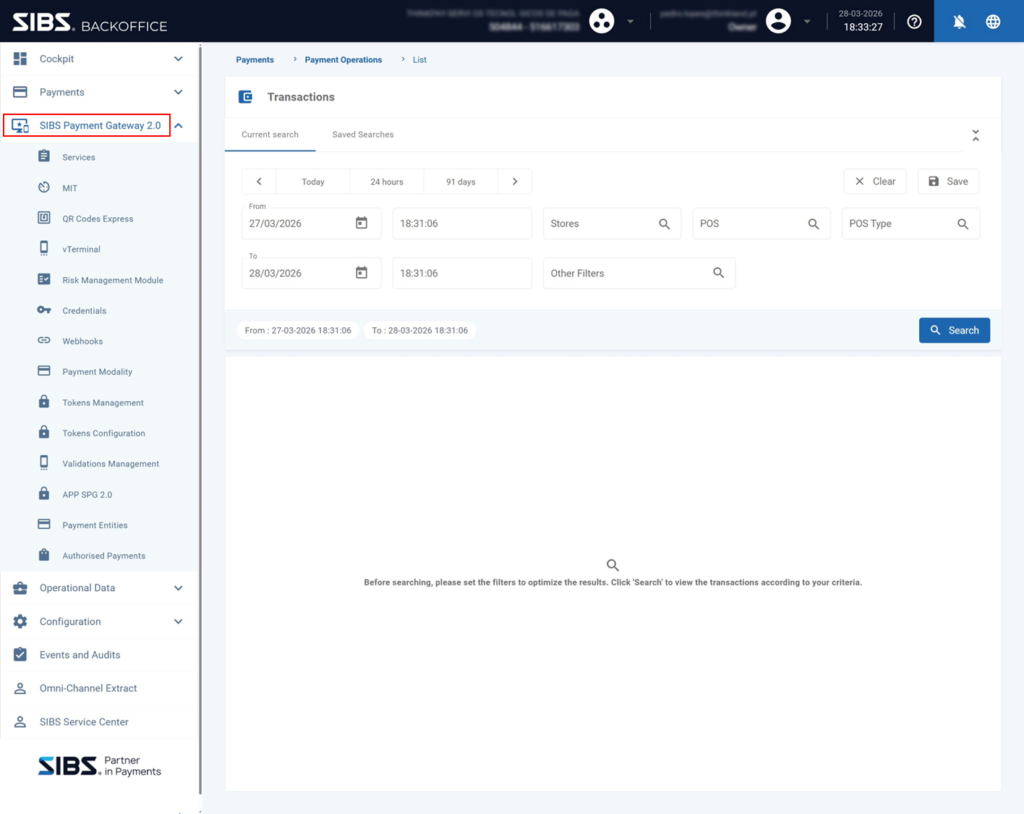
- In the left menu, select:
SIBS Payment Gateway 2.0
Step 3 – Open Webhooks Section
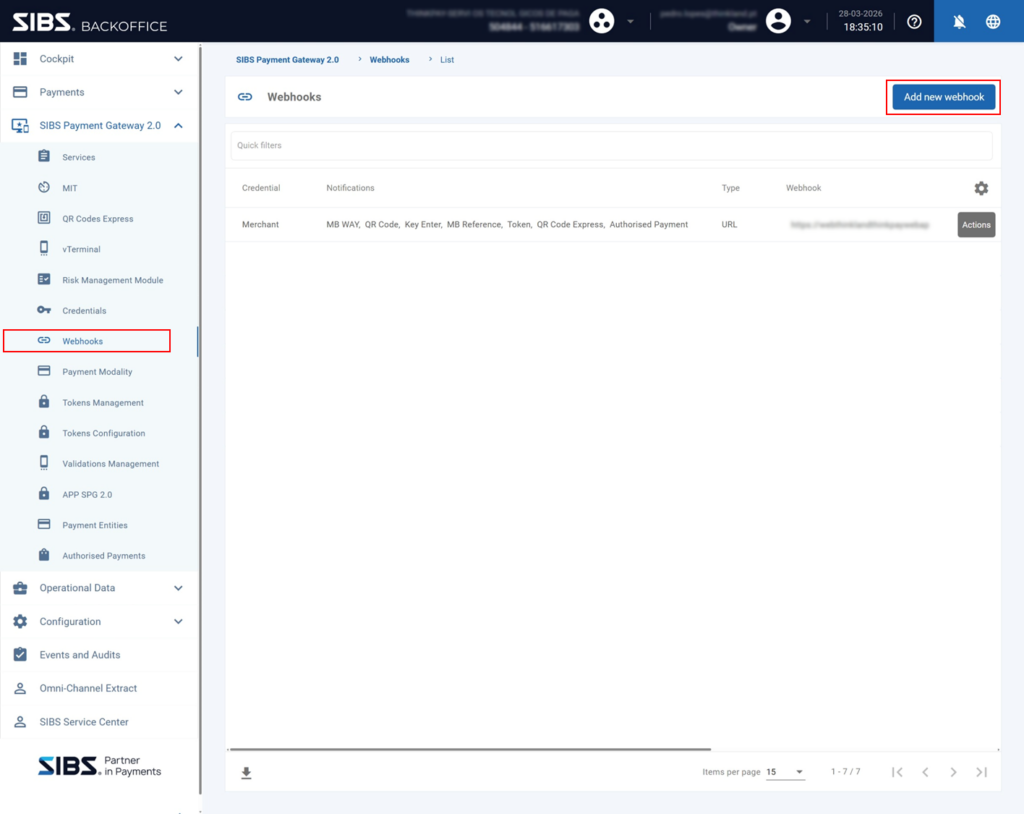
- Navigate to:
WebhooksStep 4 – Create New Webhook
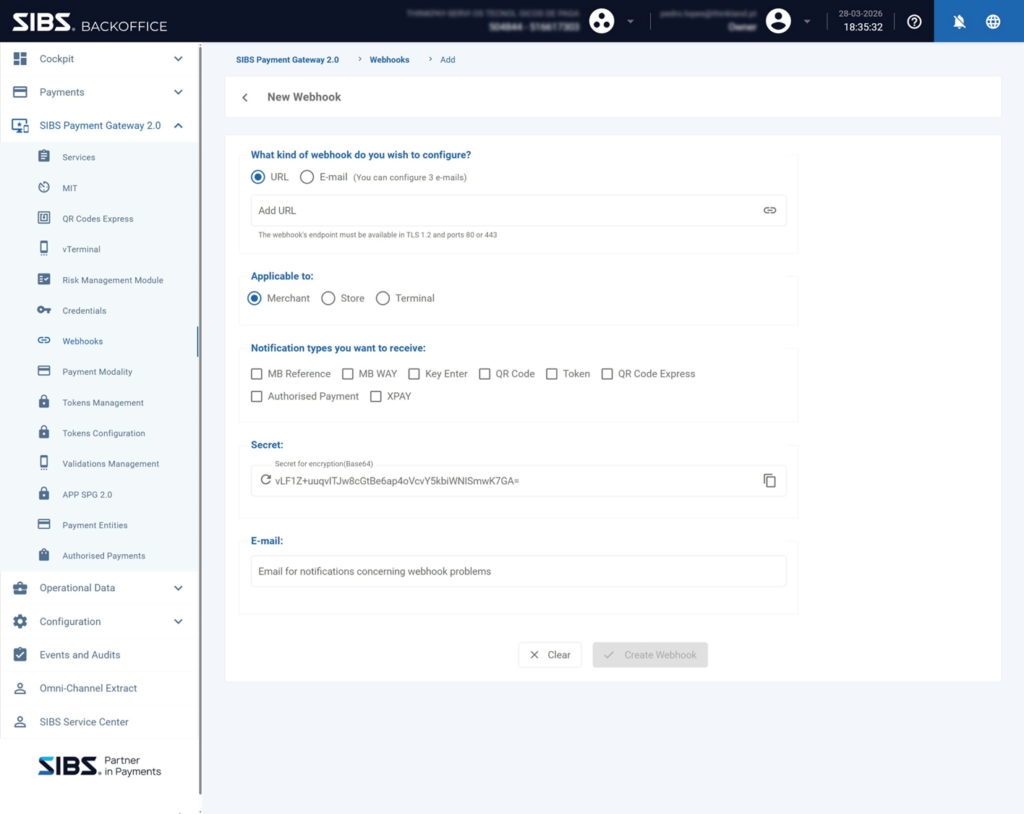
- Click:
Add new webhookStep 5 – Select Webhook Type
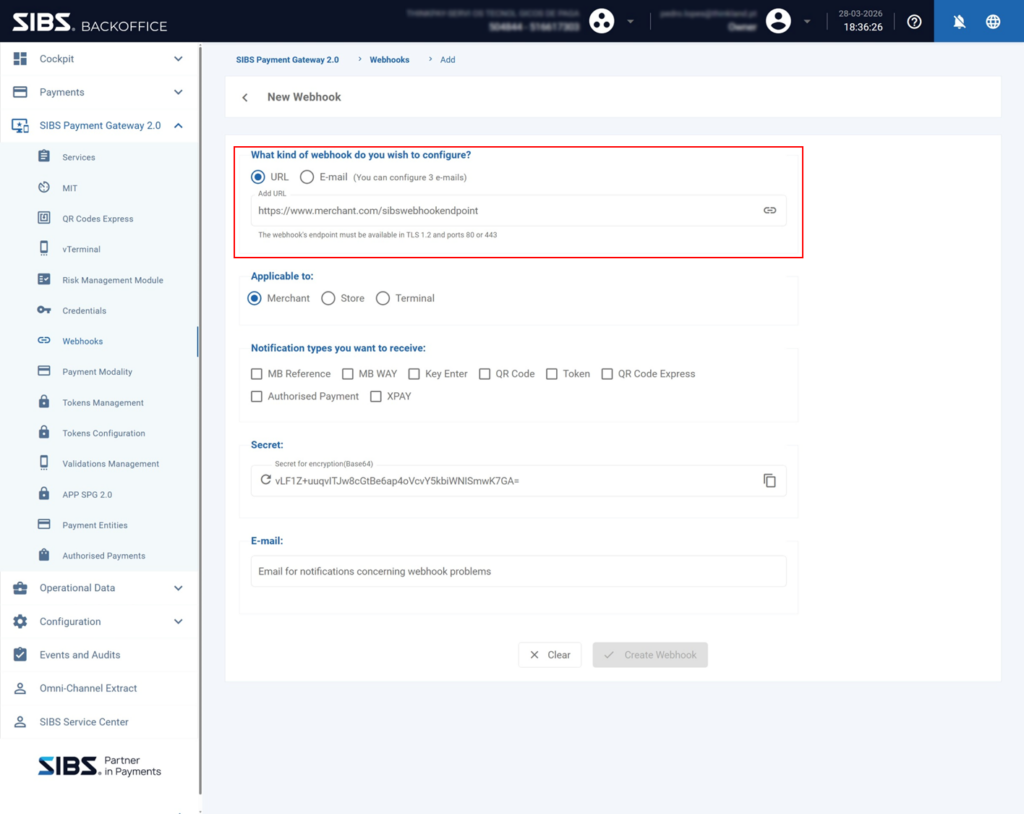
Choose between:
URL (Recommended)
- Select URL
- Provide your endpoint:
https://www.merchant.com/sibswebhookendpointRequirements:
- Publicly accessible
- HTTPS (TLS 1.2+)
- Responds quickly with HTTP 200 OK and the expected acknowledgement response body
E-mail (Alternative)
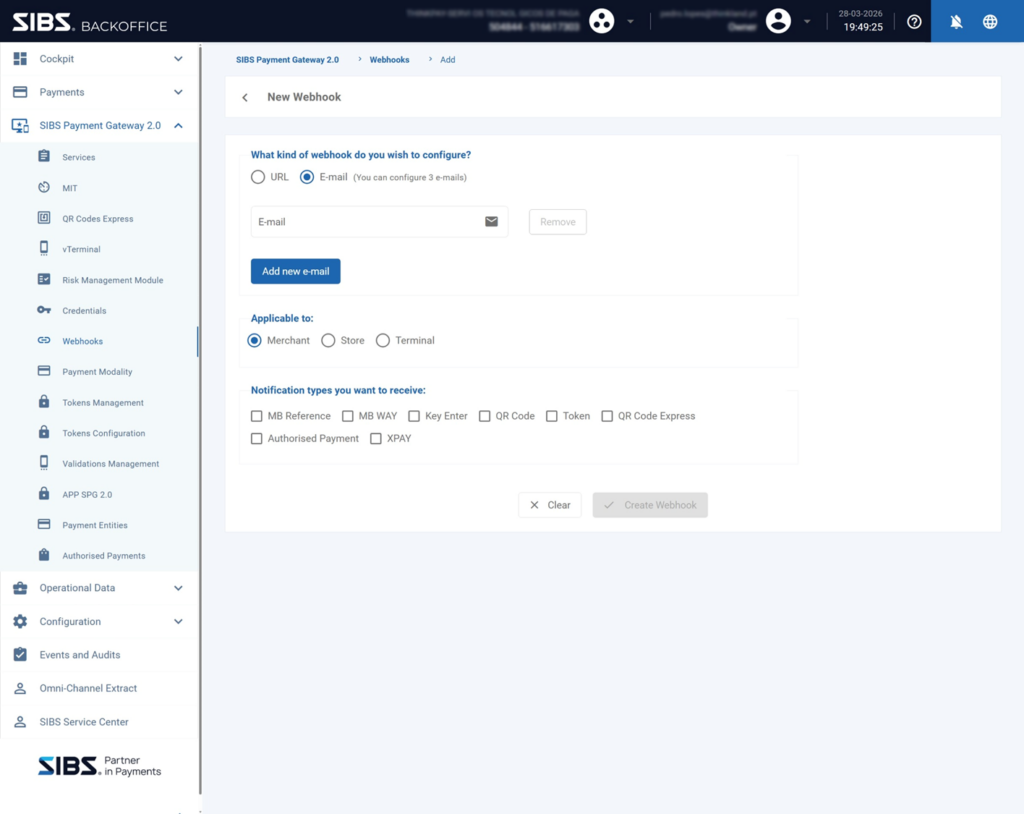
- Allows receiving notifications via email
- Suitable only for manual or fallback scenarios
Step 6 – Define Scope and Events
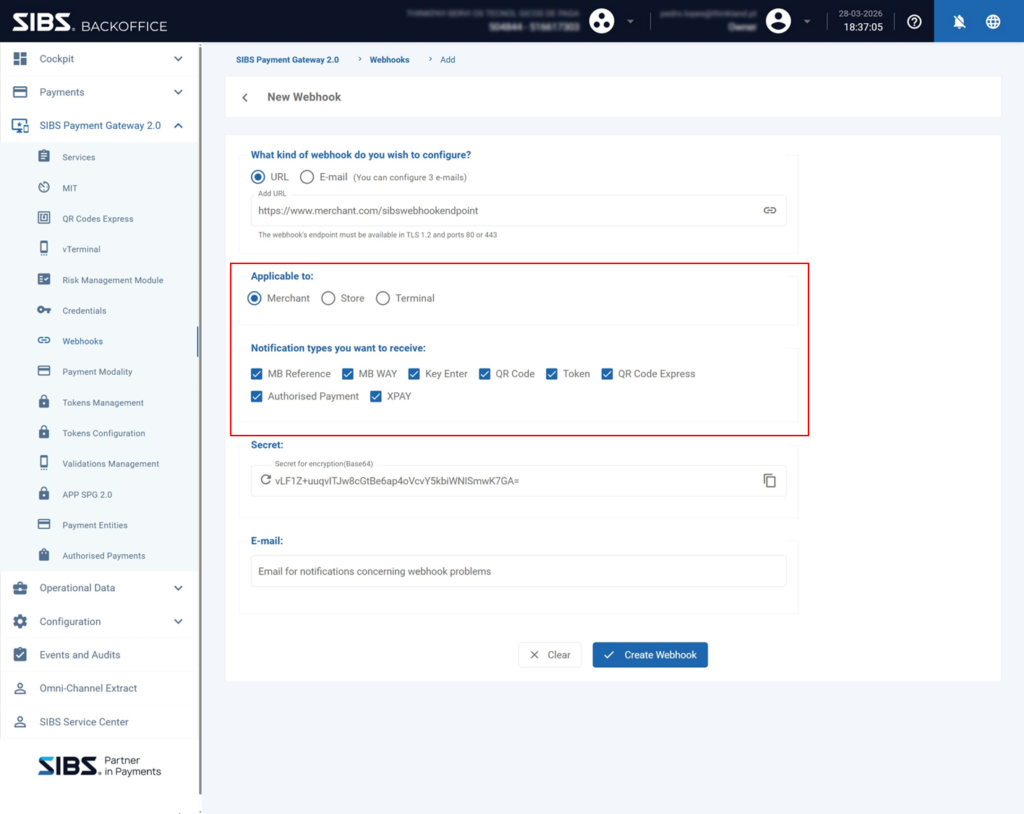
Scope
- Merchant
- Store
- Terminal
Recommended:
MerchantNotification Types
Select relevant event types:
- MB WAY
- MB Reference
- Key Enter / Token
- QR Code / QR Code Express
- Authorised Payment
- XPAY
Step 7 – Retrieve and Store Secret
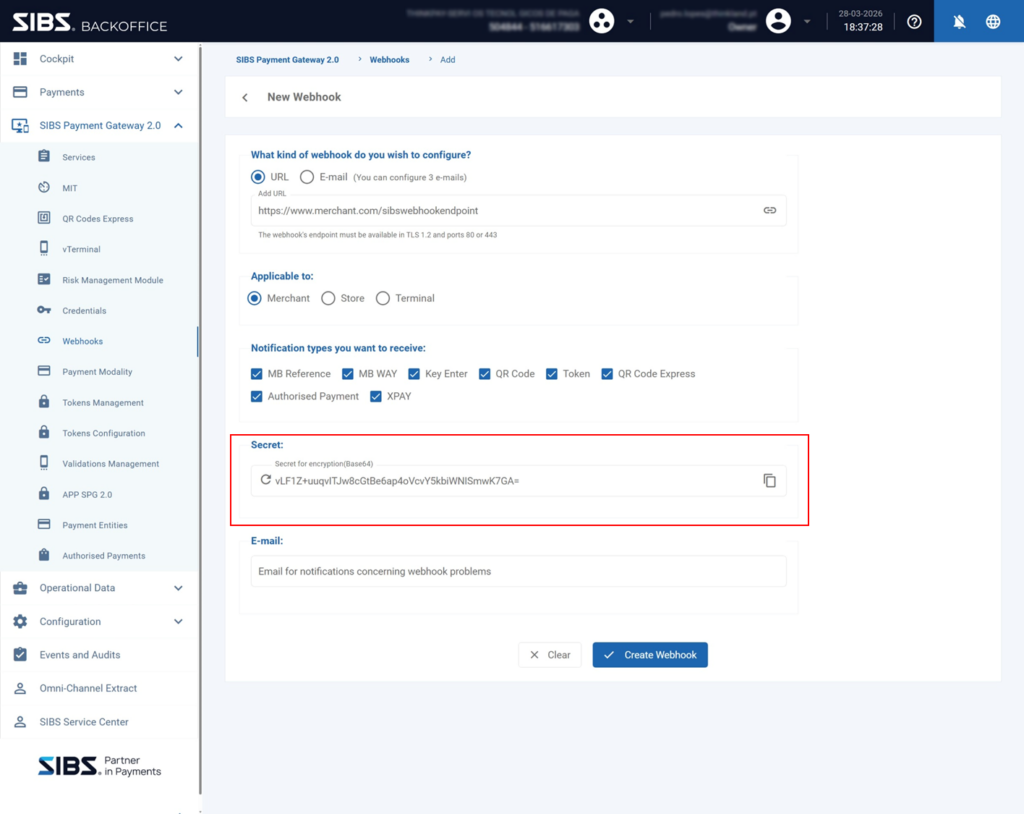
- A Base64 secret is generated
This secret is required for:
- Payload decryption
- Integrity validation
Critical Requirements
- Store securely (e.g., Key Vault)
- Never expose in logs
- Do not share
Step 8 – Configure Notification Email
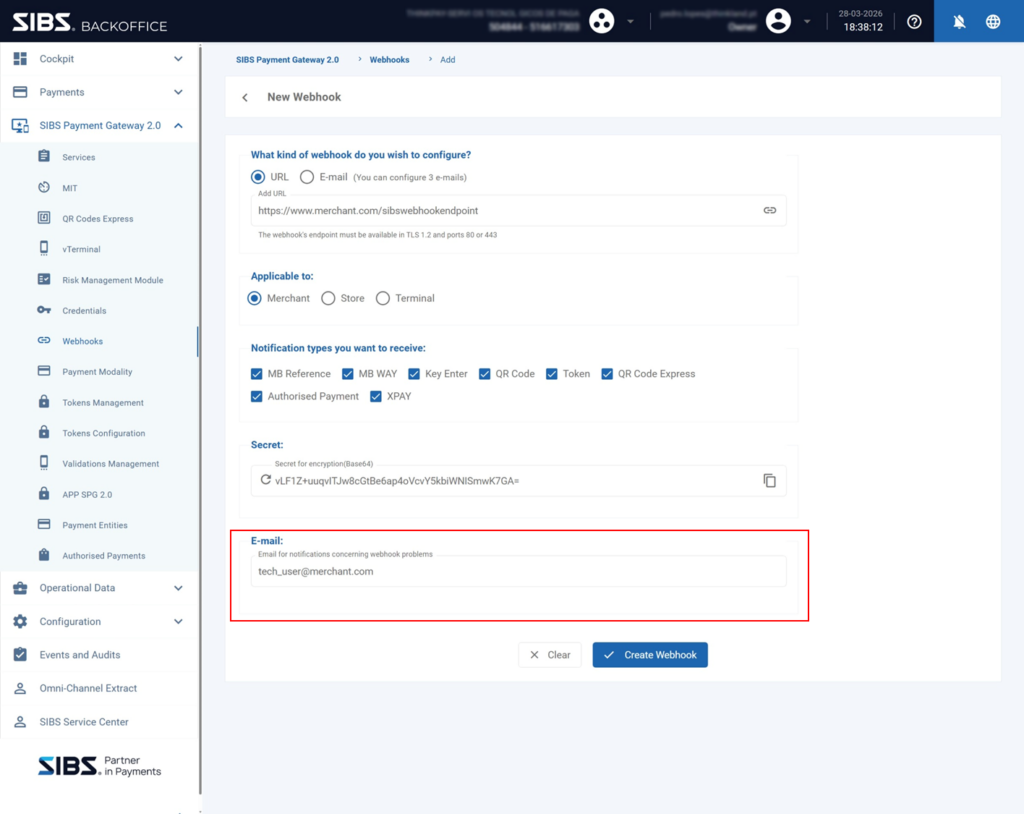
- Provide an email to receive:
- Delivery failures
- Webhook system errors
Step 9 – Create Webhook
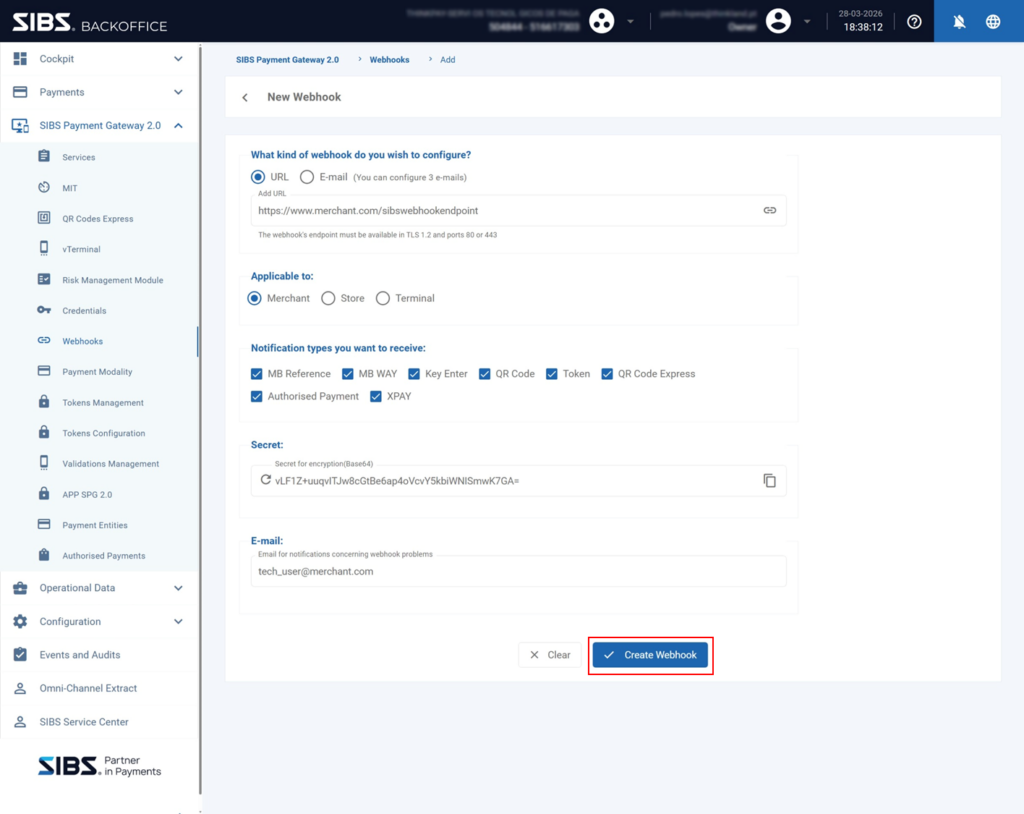
- Click:
Create WebhookStep 10 – Webhook Created
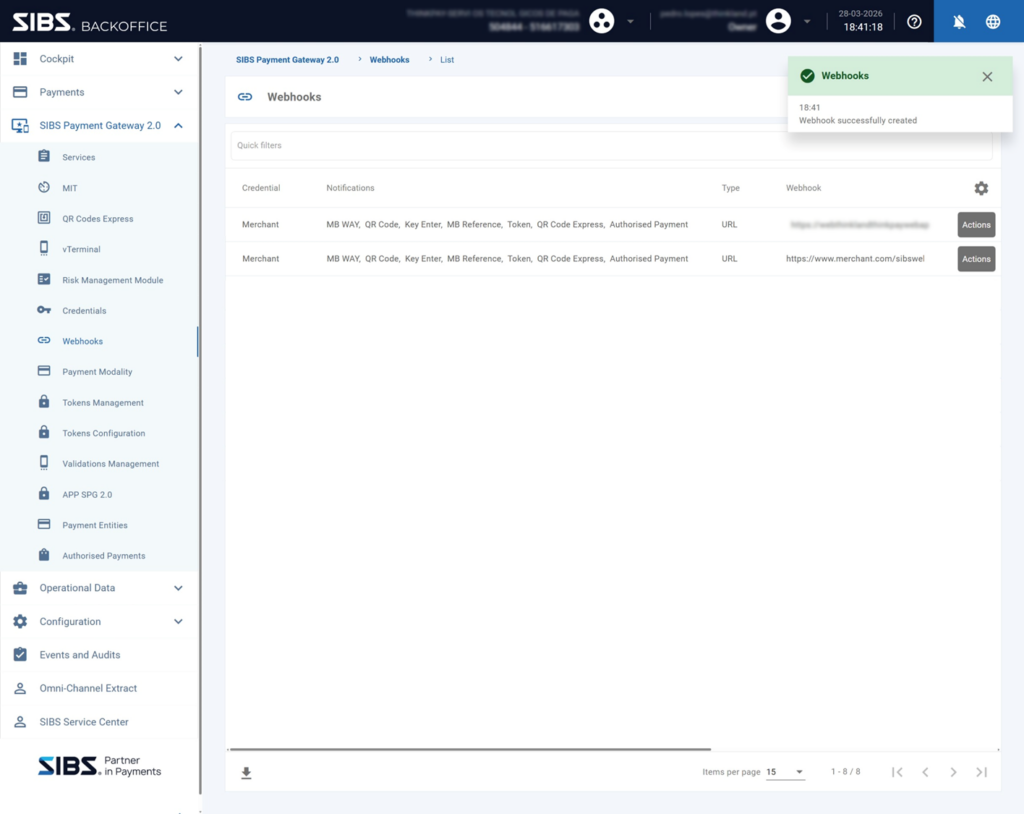
- The webhook appears in the list
- A confirmation message is displayed
Webhook Testing
Step 11 – Open Test Option
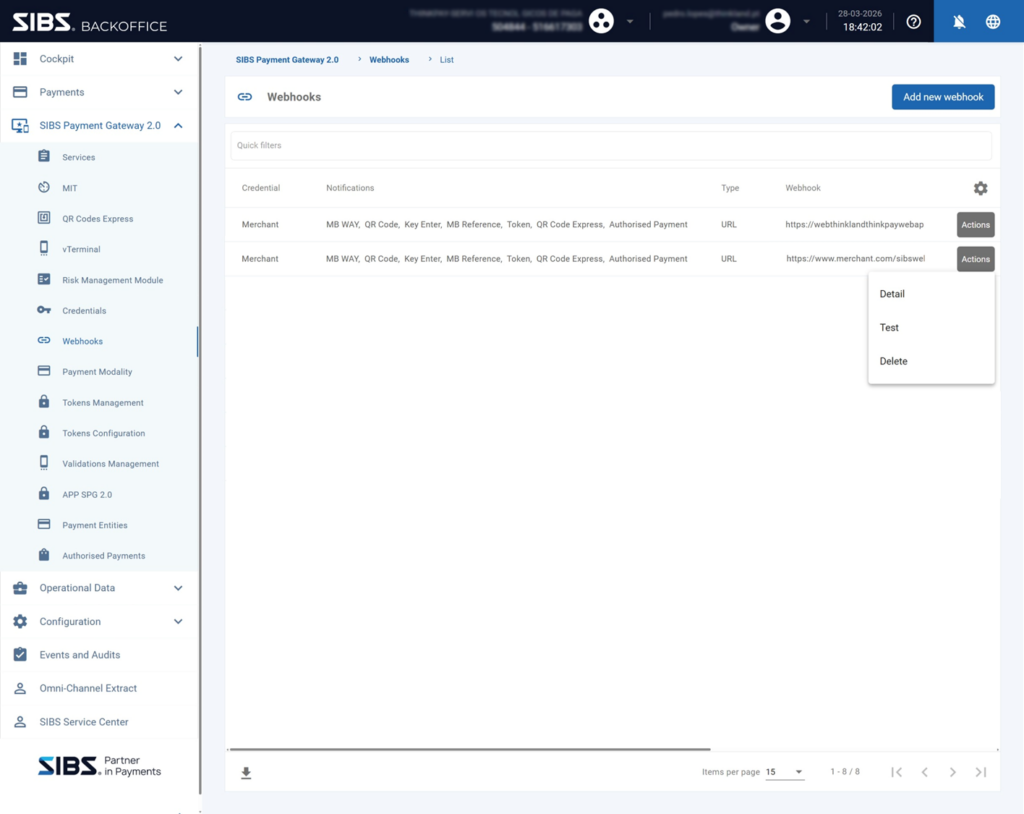
- On the created / selected webhook click:
Actions → TestStep 12 – Execute Test
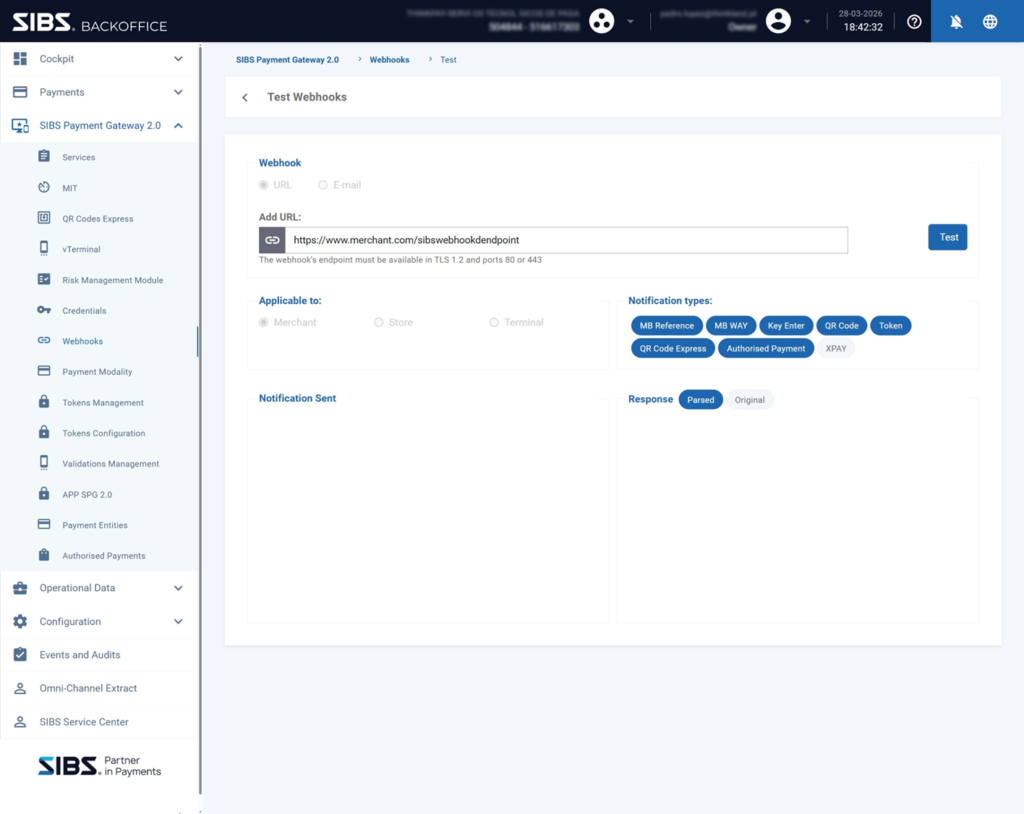
- Click:
TestValidate:
- Notification sent
- Response received
- Parsed payload
Expected Outcome
A successful test confirms:
- Endpoint is reachable
- HTTP response is HTTP 200 OK with valid acknowledgement response body
- Integration is operational
Common Issues
Endpoint Not Reachable
- Invalid URL
- Firewall blocking requests
- DNS issues
Invalid Webhook acknowledgement (non-200 or invalid response body)
- Endpoint does not return HTTP 200 OK
- Missing or invalid acknowledgement response body
- Processing too slow before acknowledgement
- Errors in endpoint logic
Decryption Errors
- Wrong secret
- Incorrect AES-GCM implementation
Best Practices
- Use URL webhooks (not email)
- Configure at merchant level
- Store secret securely
- Always test after configuration
- Monitor webhook delivery (see E.1.6 Logging and Monitoring)
Relationship with Webhook Processing
Once configured:
- SIBS sends webhook notifications
- Merchant receives and acknowledges
- Payload is decrypted and validated
- Processing is performed asynchronously
- Final state is confirmed via Status API
See:
- E.1.4 Receiving and Processing Webhooks
- E.1.5 Security and Validation
- E.1.8 Webhooks vs Status API (Consistency Model)
Summary
Webhook configuration in the SPG Backoffice is the entry point for asynchronous transaction processing.
A correct setup ensures:
- Reliable event delivery
- Secure communication
- Proper integration with backend systems