

Overview
The SIBS WooCommerce plugin enables secure payment acceptance directly within the WooCommerce checkout experience.
It integrates seamlessly with the WooCommerce order lifecycle and provides built-in support for SIBS SPG payment methods and notifications.
Benefits
- Native WooCommerce checkout experience
- Automatic order status synchronisation
- Support for asynchronous payments
- No direct API integration required
Before You Start
Ensure you have the following credentials from SIBS onboarding:
- Terminal ID : the terminal ID assigned to the merchant, by the SIBS OnBoarding team
- Client ID : merchant application identifier assigned by the SIBS OnBoarding team
- Authentication token : Authentication Token obtained from SIBS Backoffice
- Environment (Sandbox or Production)
Installation
Step 1 – Install the plugin
Download the SIBS WooCommerce plugin package provided during onboarding.
In WordPress:
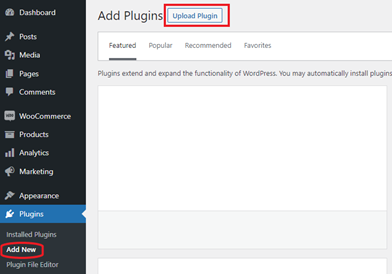
Upload the plugin ZIP and activate it.
Step 2 – Access plugin settings
Navigate to:
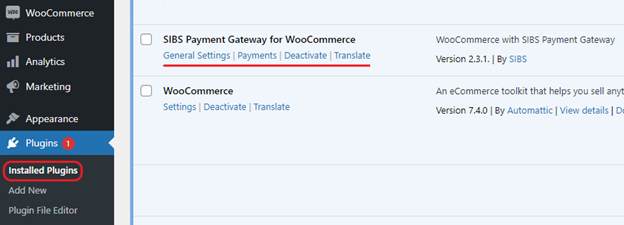
Step 3 – Enter General Settings tab
Navigate to:
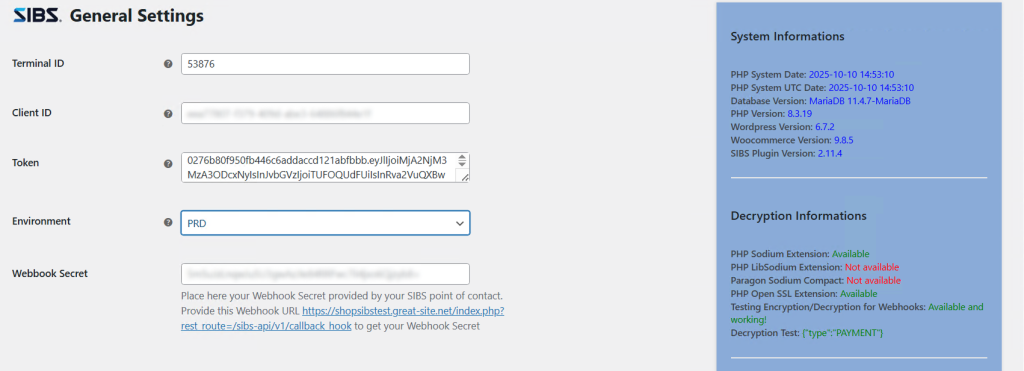
Step 4 – Enter SPG Credentials
All plugins require authentication parameters provided during onboarding.
Required fields:
- Terminal ID : Identifies the merchant terminal within SPG.
- Client ID : Used for API authentication and request validation.
- Authentication Token : Bearer token used for secure communication with SPG services.
Step 5 – Select Environment
Plugins support two environments:
Sandbox
- Used for development and testing
- No real transactions
Production
- Used for live payments
- Requires full onboarding approval
Always validate the integration in Sandbox before switching to Production.
Step 6 – Save Changes
Apply configuration changes before enabling payment methods.
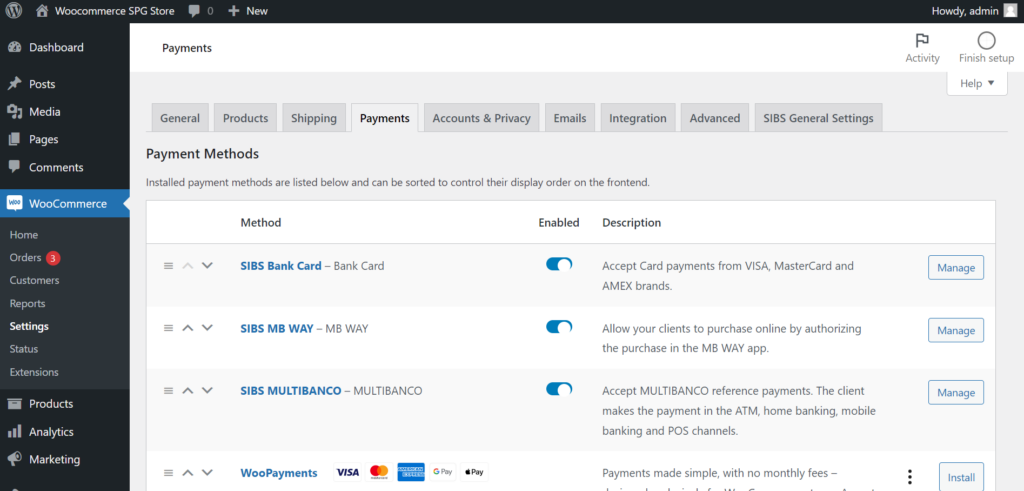
Step 7 – Customize your payment options
SIBS plugin for WooCommerce supports a range of popular payment methods, including MB WAY, MULTIBANCO References and Cards (VISA, Mastercard, etc.).
- Enter Payments tab (see Step 2: Access plugin settings).
- Click Manage to access the main configurations for each payment method.
Notes:
- Payment method availability depends on your SPG contract and merchant setup
- Some screens and configuration labels may vary depending on WooCommerce version
- If you change credentials or environment, re-test a full payment flow before going live